The Hidden Cost of Ambiguity
Many mid-market companies operate in a state of digital limbo. Employees use OneDrive for everything because it is fast, while IT departments struggle to enforce SharePoint for compliance. The result is a fragmented ecosystem where critical business data is scattered across personal cloud drives, leading to versioning nightmares, security gaps, and a significant loss of productivity. The core issue is not the technology itself, but the lack of a defined strategy for when to use which tool.
OneDrive for Business is designed for individual workflows. It is the seamless extension of your local drive into the cloud, ideal for personal notes, drafts, and files that only you or a very small, trusted group edit. SharePoint Online, on the other hand, is the platform for cross-team collaboration and structured archiving. It is where project folders, department archives, and HR documents live, ensuring content is shared, versioned, and traceable.
The choice between the two should never depend on file size or convenience. It must depend on the context of use. If a file is a work-in-progress draft, it belongs in OneDrive. If it is a final deliverable, a contract, or a policy document that requires audit trails, it belongs in SharePoint. A common and costly mistake is storing team files in personal OneDrive folders. This creates immediate versioning problems and severe security risks when an employee leaves the company, as their personal cloud data may not be properly transferred or archived.
OneDrive: The Engine of Individual Productivity
OneDrive is not a secondary storage solution; it is the primary engine for individual productivity. For CEOs, department heads, and individual contributors, OneDrive provides the flexibility needed to work without friction. The key benefits are automatic synchronization, which ensures files are available offline and backed up in the background, and simple sharing capabilities that allow for time-limited access links via email.
However, OneDrive is designed for the production of documents, not their management. It offers limited structured permission management for entire departments. If you share a file with 15 people via OneDrive, you lose granular control over who can edit, who can view, and which version is the current one. There is no central approval workflow. This makes OneDrive unsuitable for any content that requires compliance, traceability, or multi-stakeholder governance.
SharePoint: The Backbone of Corporate Governance
SharePoint Online is the heart of company-wide document management. It provides the structure that OneDrive lacks: libraries, workflows, and central permission management. For IT managers, SharePoint is the instrument of choice to ensure compliance and traceability. It allows you to set permissions at the level of the library, the folder, or the individual file, creating a robust security hierarchy.
Typical use cases in mid-market companies include:
- Project Management: Central storage of all project documents with clear roles (manager, editor, reader) ensuring everyone works on the same version.
- HR and Personnel Files: Structured storage of contracts, appraisals, and training records, which are subject to strict legal retention requirements.
- IT Documentation: Central storage of network diagrams, security policies, and runbooks, where accuracy is critical for operational security.
The decisive advantage of SharePoint lies in management. You can integrate workflows that ensure a document is only published after it has been approved by two people. This substantially reduces the risk of faulty or outdated information circulating within the organization.
Direct Feature Comparison
To make the differences tangible, the following table compares the most important characteristics of both services. This comparison highlights why a hybrid approach is necessary rather than an either/or decision.
| Feature | OneDrive for Business | SharePoint Online |
|---|---|---|
| Primary purpose | Individual storage & synchronization | Team collaboration & structure |
| Permission management | Simple (individual sharing) | Granular (roles, groups, hierarchy) |
| Versioning | Personal history | Central, shared history |
| Search | Search within my files | Search across the whole team/company |
| Workflow automation | Limited | Extensive (Power Automate) |
| Target audience | Individual users | Teams & departments |
Both services use the same underlying technology and are seamlessly connected. A file in OneDrive can easily be moved into a SharePoint library without losing metadata or versions. This technical interoperability is the foundation of a successful hybrid strategy.
The Hybrid Strategy: A Step-by-Step Implementation
Best practice is not an either/or decision, but a clear separation of use cases. We recommend the following approach for a robust document strategy that balances flexibility with control.
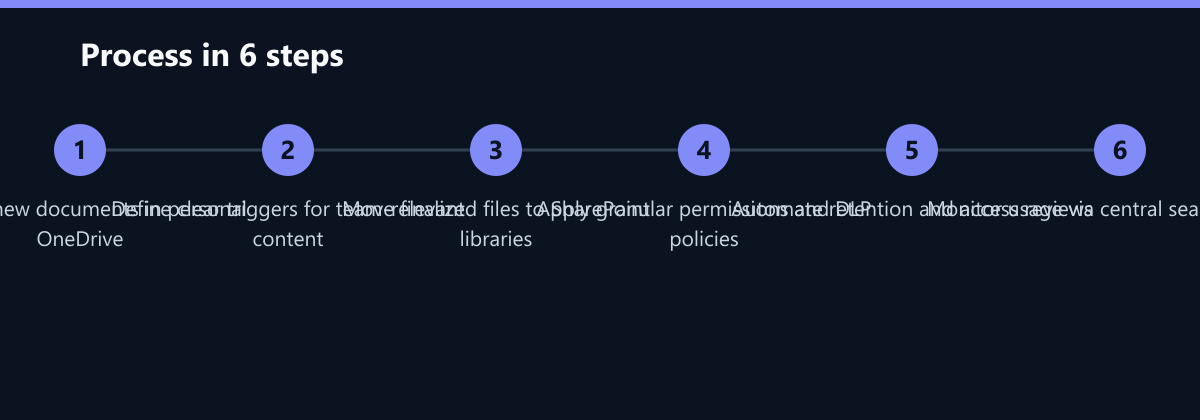
- Personal Work in OneDrive: All employees start new documents in their OneDrive. This is where drafts, notes, and private working files are created. This step ensures that the individual workflow remains fast and unburdened by complex permissions.
- Handover to SharePoint: As soon as a document becomes relevant for the team, it is moved into the responsible SharePoint library. This can be done via drag-and-drop or a simple workflow. The trigger for this move should be clear: when a document is no longer a draft.
- Central Search and Archiving: All final, shared documents live in SharePoint. This is where the central search function and compliance requirements apply. By keeping final documents in SharePoint, you ensure that company-wide search indexes are accurate and complete.
This strategy minimizes storage needs in personal areas and maximizes traceability in company areas. IT administrators can define policies that ensure sensitive data does not remain permanently in private OneDrive folders.
Security and Compliance: Where the Real Value Lies
For IT decision-makers, data protection and access control are critical factors. Both services are subject to the high security standards of Microsoft 365, but they require different configurations to be effective. A clear separation makes the implementation of these compliance measures considerably easier. You do not have to create complex rules for every individual folder in a manager’s OneDrive; you can apply them to the central SharePoint libraries.
Key security aspects include:
- Data Loss Prevention (DLP): DLP policies should be configured so that sensitive data (e.g., containing credit card numbers) is not stored in personal OneDrive folders of employees who do not belong to the relevant department. This prevents accidental leakage of sensitive information.
- Access Reviews: SharePoint enables regular access reviews. You can automatically get reports when employees have permissions they no longer need. In OneDrive, this is limited to the personal level, making it difficult to audit who has access to what across the organization.
- Retention Policies: SharePoint allows you to apply retention policies to libraries. This ensures that, for example, contracts are automatically archived or deleted after 10 years without manual intervention. This is a critical requirement for many industries.
Typical Mistakes to Avoid
Even with the right strategy, organizations often fall into specific traps that undermine the benefits of a hybrid approach.
- Using OneDrive for Team Projects: This is the most common error. When a team of more than two people works on a project, the file must move to SharePoint. Keeping it in OneDrive leads to version conflicts and security risks.
- Ignoring DLP Policies: Many companies enable OneDrive but fail to configure DLP. This allows sensitive data to reside in personal cloud spaces, creating a significant compliance risk. Always define what data is allowed to stay in OneDrive.
- Lack of Clear Triggers for Migration: If employees are unsure when to move a file from OneDrive to SharePoint, they will often keep it in OneDrive for convenience. You must define clear, business-driven triggers (e.g., “when the draft is approved”) to ensure consistent behavior.
How You Measure Success
A document strategy is only as good as its measurable outcomes. You should track the following Key Performance Indicators (KPIs) to ensure your hybrid approach is working.
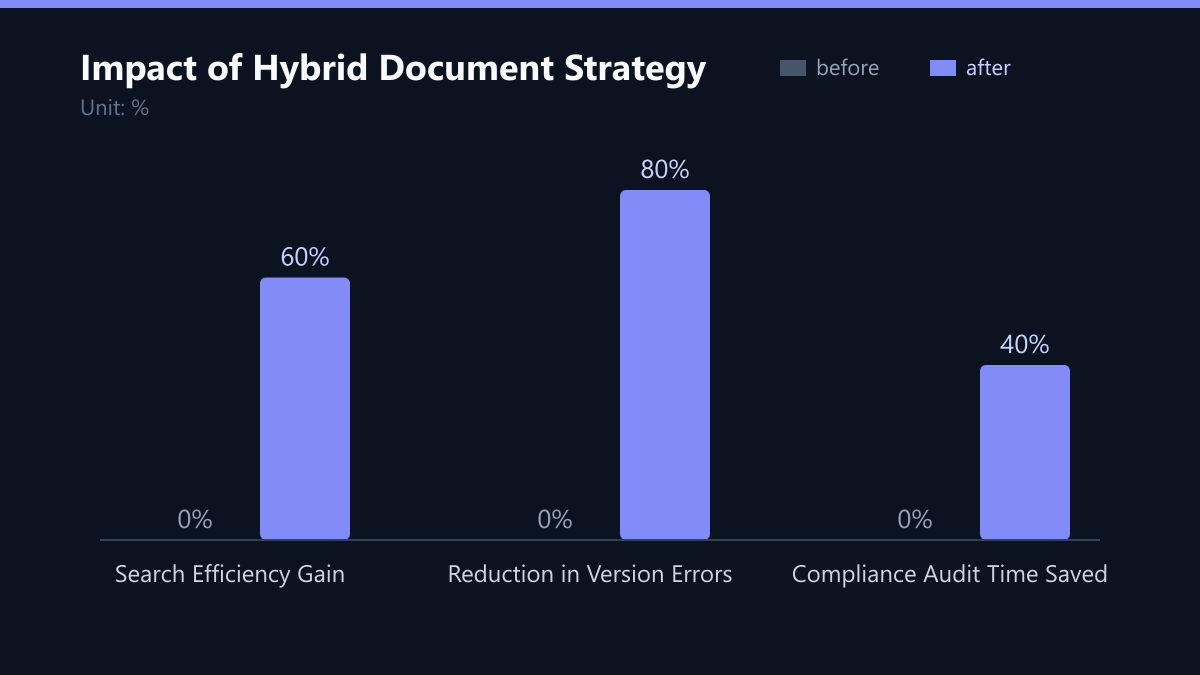
- Search Efficiency: Measure the average time it takes for an employee to find a specific document. A well-structured SharePoint environment should reduce this time significantly compared to searching through personal OneDrive folders. Aim for a reduction of at least 50% in search time within the first six months.
- Version Error Rate: Track the number of incidents where an employee used an outdated version of a document. This can be measured through support tickets or post-incident reviews. A clear handover process should reduce these errors by 70-80%.
- Compliance Audit Time: Measure the time spent by IT and compliance teams during audits. By centralizing final documents in SharePoint with automated retention policies, you should see a 40% reduction in manual audit effort.
Checklist for Implementation
Use this checklist to ensure your transition to a hybrid document strategy is smooth and effective.
- Define clear policies for what stays in OneDrive vs. what moves to SharePoint.
- Configure DLP policies to block sensitive data in personal OneDrive folders.
- Set up SharePoint libraries with granular permissions for each department.
- Implement retention policies for critical document types (contracts, HR files).
- Train employees on the “Draft in OneDrive, Final in SharePoint” workflow.
- Establish regular access reviews in SharePoint to remove unnecessary permissions.
- Monitor search analytics to identify areas where document structure can be improved.
Passend dazu
- Cutting Document Search Time by 60% for a Singaporean Legal Practice
- Digitalization of a Swiss Engineering Firm: 60% Reduction in Email Latency through Exchange Online and Modern Identity Management
- IT Consulting & IT Strategy
- AI Consulting & AI Strategy
- Cloud Services & Cloud Migration
- Azure DevOps vs. GitHub Actions: CI/CD Strategy for IT Service Providers